Blog
Welcome


Recent posts
SEARCH RESULTS FOR: Layouts

Jennifer and Jonathan Mulzer were married on the 21st of October, 2010. Although they call Indianapolis, Indiana home, they celebrated a lovely destination wedding amidst the rolling hills of Sonoma, California’s wine country. They were photographed by Amanda and Nate Reynolds of Turtle Pond Photography. "It was a beautiful, intimate wedding with fifty of their closest friends and family. The 360 degree view of endless vineyards and a breathtaking sunset created the perfect backdrop for their very special day. The entire celebration was blanketed with so much joy, love, delicious food, dancing, To View More >>
This entry was posted in Uncategorized by Admin
Why not design your albums in Photoshop or InDesign? A lot of people do, and they're great applications – we depend on them both ourselves. A few thoughts … Adobe don't think designing your albums in Photoshop is a good idea. That's not what it's for. Adobe's page layout software is InDesign. So how much does InDesign know about wedding and portrait photographers, their workflow, their albums and their suppliers? InDesign doesn't know what DPI your lab needs, or what file type, or what size the printed layouts should be, or about bleed and trim requirements, or what colour management processes To View More >>
This entry was posted in by Admin

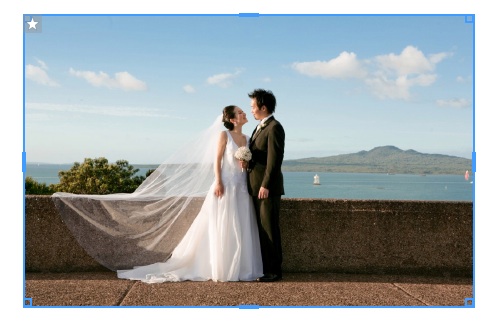
On 23 October, Gold Coast based couple Hayley and Greg came home to New Zealand and married at Tarureka Estate. Planning a wedding from abroad is a tough ask, but Hayley's dad acted as their local wedding planner and did an excellent job. Haran of Haran Photography shot their wedding just outside of Wellington, and says their wedding day was a simple but beautiful celebration of Greg and Hayley's love. As is their album... Here are some of the layouts. Click here to see more of Haran Photography's work. Cheers, Anna To View More >>
This entry was posted in by Admin
Version 1.47, builds on changes introduced in v1.46. Our main focus was on Queensberry's new press books, including fixes to the new workflow, many of them "behind the scenes" from the user point of view. We know we have a way to go with this and the developers are continuing to work on cover design issues in particular. Having said that we've introduced three new features to speed up your album design. They're still a bit "v1.0", but we wrote them in consultation with Queensberry's design team, who live and die by productivity, and we wanted to get them to you early so you could take a look and To View More >>
This entry was posted in by Admin
The purpose of our recent survey was to get a better picture of how you're using the software, and the features most important to you. It turns out you use Photojunction to design albums for almost a hundred album suppliers that we don't even offer resources for - no wonder a third of you "always" use Remix DIY! It's also clear that unless you're one of Queensberry's clients you're most likely using PJ primarily to design and export page layouts. That's not so surprising. Getting past "page design" requires a lot of input from vendors, and unfortunately they're much less engaged with PJ than their To View More >>
This entry was posted in by Admin

We know the feeling – you know there must be a way to do something, but you just can't figure it out. Here's an example: there's no standard "title" aperture in PJ Remix, so how do you add a title? There are actually two ways to do it. The easier way (but maybe also easier to get wrong) is simply this: Add a blank aperture to the layout using the Add button (left image, above) Change the aperture to Customise (right image, above) Uncheck the Constrain Proportions box and enter the values directly. Easy as long as you remember the values: 112 wide by 200 high , as above. Whether you use To View More >>
This entry was posted in by Admin

Cover layout design in PJ Remix Here are the first steps in preparing a perfect, hassle-free print-and-bind order, really fast. 1. First, upgrade to PJ Remix. If you have already, thank you. 2. Use Remix to design your cover as well as your page layouts. You'll get to frame and crop the cover image yourself, see exactly what it looks like and be sure that it looks good. For example, here you can see how much of the image in the photo front cover layout above has been cropped away. No problem in this case, but many images won't be suitable: 3. Export your cover AND page layouts using Remix's Export To View More >>
This entry was posted in by Admin
We owe a big thank you to all the people who completed our survey recently. We had a great response, and we thought you'd like to know the outcome. There were two major surprises, as you'll see. 1. We listed all the vendors whose resources we distribute, and asked you to tell us which companies you use. People named an average of two companies each, and some people named several. 2. Over a third named Queensberry as one of their suppliers, but the first big surprise was that 40% of respondents wrote in the name of a company whose resources we don't offer. In fact we discovered that PJ is used to To View More >>
This entry was posted in by Admin

A while back, in a post about the problem reporter, Ian listed all the possible issues that might pop up in the problem reporter. Beyond alignment, the most common issue seems to be problems with images. The problem most users encounter is missing high res files. The next two are missing low res files, and HR and LR files that do not match. Both the last two problems have the same solution, which I'll talk about here. The Low Res files that Photojunction is referring to are the Low Res Proxies that are created when you import your images into your event. These files are what allow you to layout To View More >>
This entry was posted in by Admin
The end is nigh for our Classroom Movie series as we finish off the syllabus this week with a 'presenting to clients' webinar. This is powerful functionality that gets overlooked in our introductory webinars... Here's what we'll be covering tomorrow: - Full screen review mode - The Collection builder - Proof sheets and proof layouts - Reports - Slideshows/Quicktime - Online proofing Click here to register and for more information. If you’ve missed our previous webinars, check out our up-to-date Classroom Movies here. As always, hope to see you there! Nigel To View More >>
This entry was posted in by Admin